
Reports can be generated to provide data for training program analysis, manager needs, and audit support. All reports can be generated from QTD from the Reports section of the menu. You can create new reports, customize report criteria, and save custom reports.
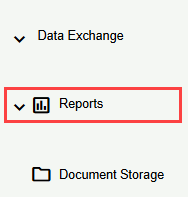
Once you navigate to the Reports section, the drop-down menu lists the following options.
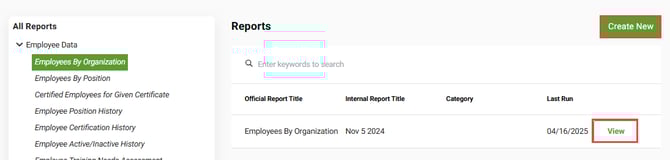
After you select a report from one of the data categories, either click Create New to configure a new version of the report or click View for an existing version of the report that has already been saved.
Reports include data filters that allow you to limit the data records included in the report. For example, an employee report will let you limit data records to active or inactive employees. To configure filters, click on Edit for that filter, make changes, and then click Save in the filter fly-in windows.
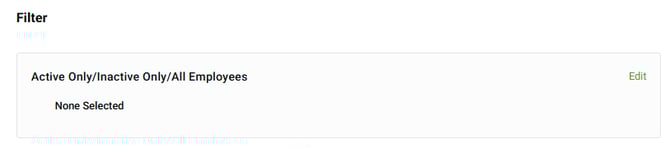
Filter example.
If a required filter has not been configured for a report and you attempt to save or preview it, an error message is displayed to let you know what data is missing.
 If a required filter has not been configured for a report and you attempt to save or preview it, an error message is displayed to let you know what data is missing.
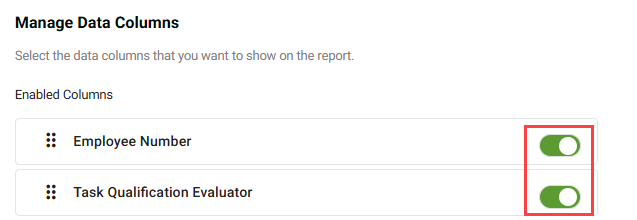
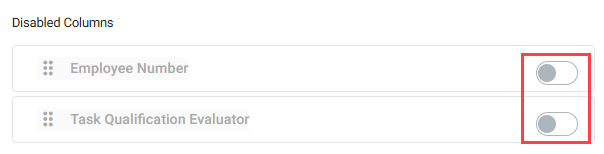
You can configure the data columns included in the report. To exclude a column, click its Selection toggle button. You can include those columns again by clicking the Selection toggle button in the Disabled Columns section.
You can use the default title for a report or give it one that better reflects your purpose. For example, if you’ve configured the Tasks by Duty Area report to only include reliability-related tasks for Transmission Operations, you might name it RR Tasks for Transmissions Ops.

All reports can be previewed, so you can be sure that the right data is included before you share the report. To preview a report, click Run Report. You can exit the preview by clicking the Preview Exit button.

Generating a report preview.

Exiting the report preview.
To save a report with your current configurations, click Save Report.

Exporting and Sharing Reports
Most reports can be exported in the PDF and Excel file formats. You need to generate a report preview before you can export the report. Then click the Export button, select the file format you want, and click Export again.

You can email reports from the Reports page to easily share them with your stakeholders. You need to generate a report preview before you can share the report. Then click the Share button, enter an email address, select the file format you want, and click Share again.

Managing Report Logos
The logo that appears on reports is specified by settings in Data Exchange > Database Settings.

Logos are managed on the General Settings tab.
