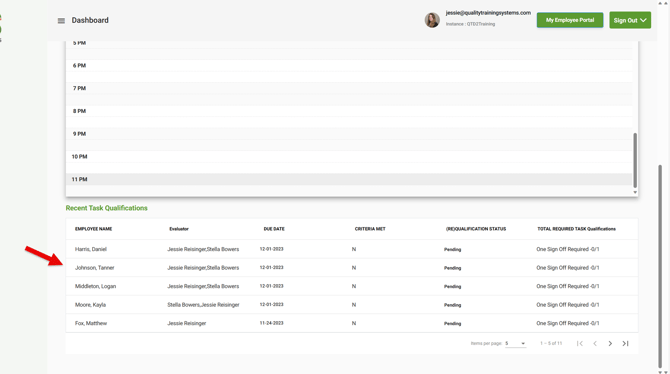
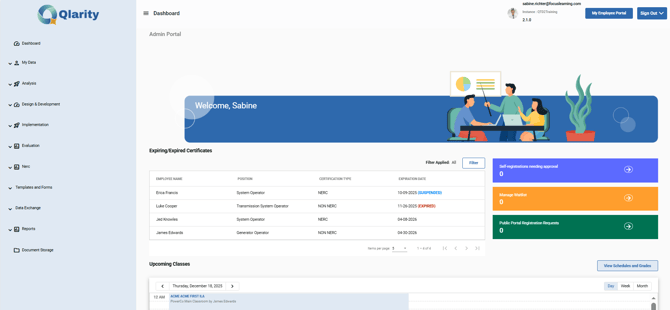
When you log into Qlarity, the first screen you see is the administrator dashboard screen. The dashboard provides essential information for you, as a training administrator, to monitor the day-to-day activities in your training program:

Expiring/Expired Certifications
The top section of your dashboard displays any employees who have expiring certifications.
Where does this information come from? The information displayed here is directly tied to the Employee window as well as the parameters set up in the Certification window under My Data
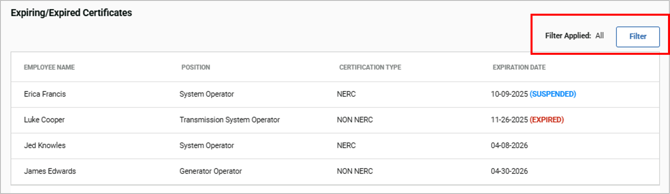
The Expiring/Expired Certifications allows you to filter for the type of certificate expirations you want to see (All, Pending Expiration, Suspended, Expired). The selected filter remains defaulted when you log out of Qlarity.
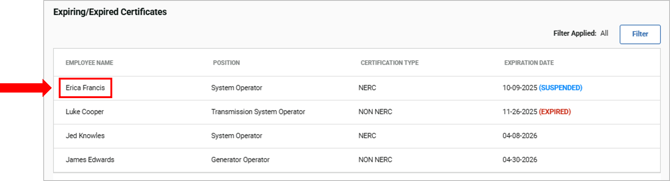
To view an employee’s profile and/or update the certification information, click on the individual employee’s name in the Expiring/Expired Certifications table to be taken directly to that employee's page. This "jump to employee" feature works for any employee listed here regardless of expiration date status.
Self-Registrations Needing Approval
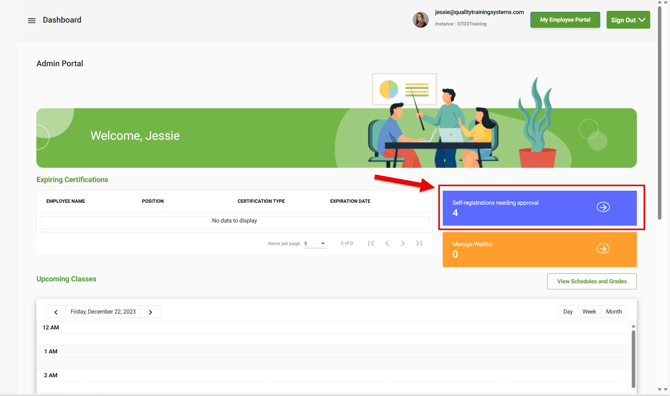
Directly next to the Expiring Certifications section of your dashboard, there is an action tile indicating the number of self-registration requests for courses from your employees that need to be approved.
What is self-registration? Do I have to use it for my courses? Self-registration is an optional feature that may be enabled when scheduling your classes. If you enable self-registration when scheduling a class, the trainee/employee can request to enroll from their Employee Portal (EMP), instead of them being required to contact you as the administrator to request they be enrolled in the course.
When enabling self-registration, you have the option to allow the trainee/employee to automatically be enrolled upon their request or require that you as administrator approve any enrollment request. If you choose to require administrator approval, any registration requests will appear in this blue tile here on your dashboard.
Click here to learn more about setting up self-registration.
1. If a request is listed here, click on the tile to open the Self-Registrations Needing Approval window.
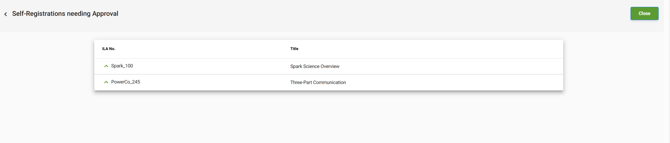
2. This window will display any ILAs (courses) that have associated self-registration requests.
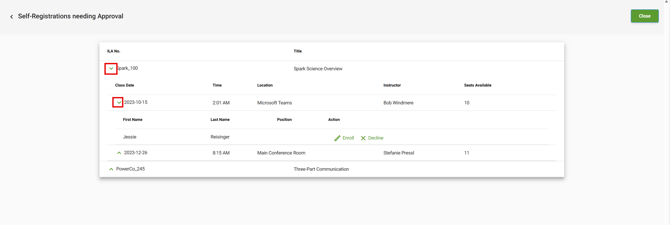
3. Expand the arrow next to a given ILA to view pending self-registration requests needing approval.
4. To accept the self-registration request, click Enroll.
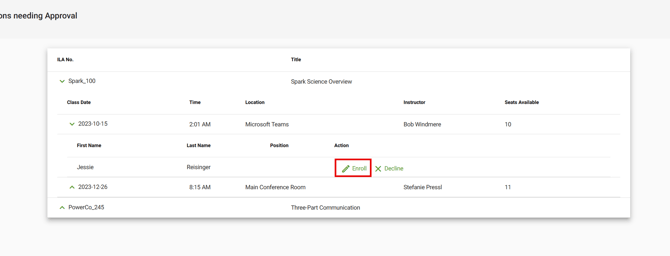
5. To deny the self-registration request, click Decline.
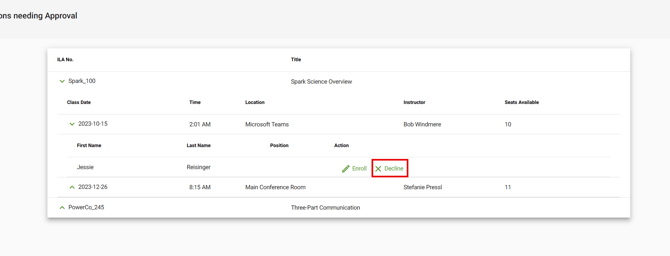
6. After an action is taken, the request will be removed from the Self-Registrations Needing Approval window.
Managing Waitlists
If you choose to enable self-registration for your courses, you have the option to create a waitlist if the total seats allowed are filled. Anyone who requests enrollment in a course which is already full will be placed on the waitlist. The waitlist for a course will appear in the Manage Waitlist section on your dashboard.
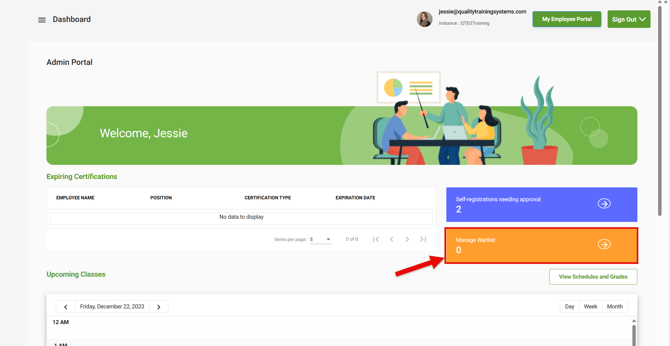
If a waitlist student is listed here, click on the tile to open up the Manage Waitlist window.
Upcoming Classes
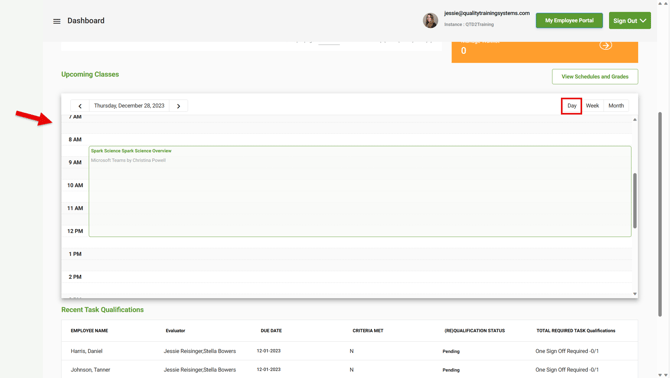
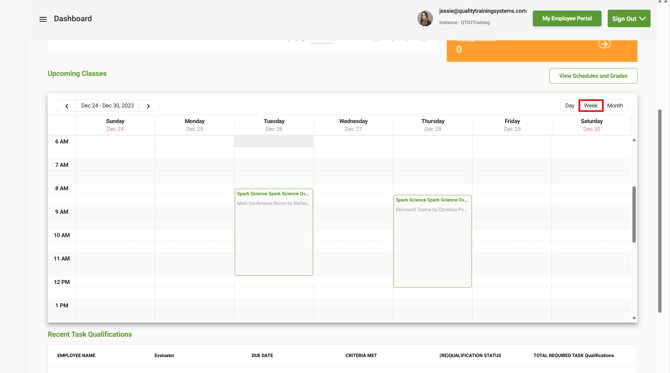
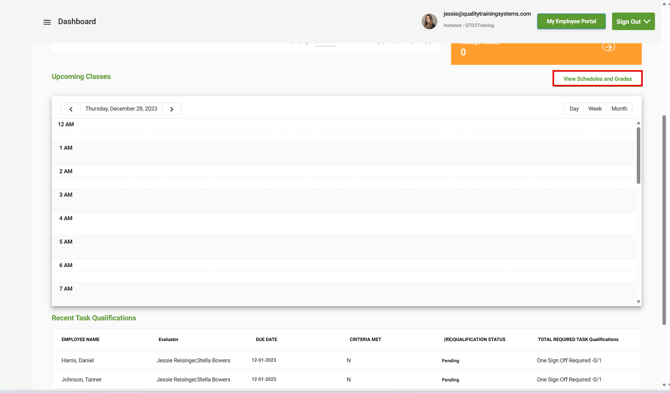
The Upcoming Classes section of your dashboard is directly tied to the Scheduling Classes window of QTD. Here you can see classes that are scheduled by the Day, Week, or Month.
By default, the display will show today’s class schedule (Day).
To view the full week, select Week at the top of the pane.
To view the month, select Month at the top of the pane.
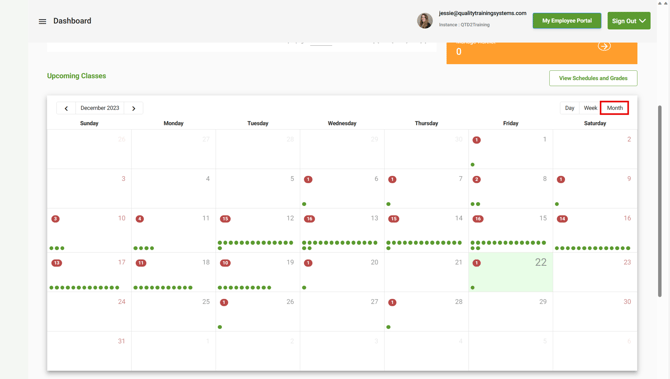
To go to the Scheduling Classes window from your dashboard, select View Schedules and Grades.
Recent Task Qualifications
The bottom section of your dashboard displays any Recent Task Qualifications completed by employees. This table will display the Employee Name, Evaluator, Due Date, Criteria Met (Y/N), (Re)Qualification Status, and the Total Required Number of Task Qualifications.