
Effective Tuesday, February 3, the QTD 2.0 Customer Support Portal and the QTD 2.0 Help Center websites will be inactivated. You must create an account on the new platform to log tickets in the Customer Support Portal and view educational content in the Qlarity Knowledge Base.
Creating Your Account
You need to create an account the first time you access either the Customer Support Portal or the Qlarity Knowledge Base. The account will provide you with access to both resources.
- Go to https://focuslearning.com/ and click the Customer Portal button in the upper right of the screen or click Resources > Qlarity Knowledge Base.
- A sign-in prompt appears. Click Register here to create an account
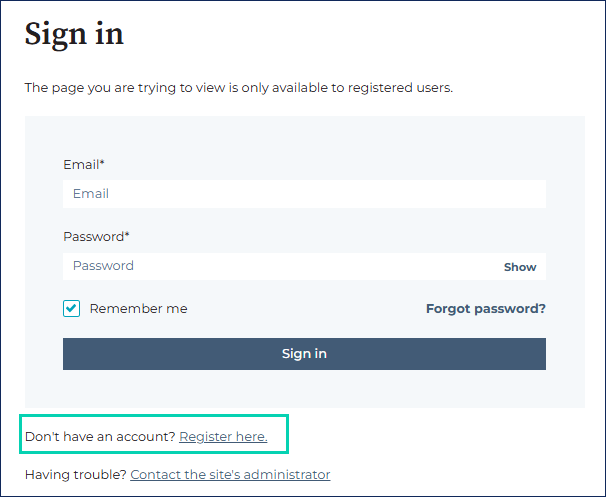
- A password setup screen is displayed. Enter your email address and provide a password. Be sure to use your business email address rather than a personal email address. Click Save password to complete your registration.
- Your registration will be processed. It may take a few minutes before your account is ready for use.
If you are not receiving password reset emails, add noreply@focuslearning.com to list of safe senders.
Submitting Qlarity Support Requests
On February 3, new Qlarity support tickets must be submitted using the new portal on the FOCUS Learning website. Any support tickets you previously submitted will be temporarily unavailable for tracking and reference.
- Go to https://focuslearning.com/ and click the Customer Portal button in the upper right of the screen.
- If you are not already signed in, a sign-in prompt appears where you can either provide your email address and password or register for an account. Enter your credentials to continue.
- A Tickets page is displayed. Support tickets you create in the new portal are listed here. The ticket list can be filtered by ticket status, and you can view only the tickets you created or all the tickets created by users at your organization.
- To submit a new ticket, click the File a Support Ticket option in the upper right of the screen. The ticket form is displayed and populated with your email address. To log a Qlarity ticket, select the Qlarity checkbox. The form expands so you can specify if you are reporting an issue, requesting training, or submitting a product enhancement request.
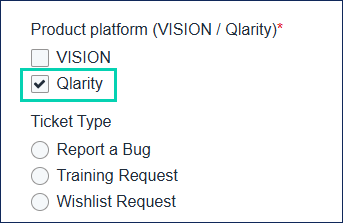
- Complete the required form fields. Depending on the ticket type you select, different fields are required.
- Click the Submit button when you’re done.
Accessing the Qlarity Knowledge Base
On February 3, the Qlarity Knowledge Base will be available from FOCUS Learning website. You use the same account credentials to access the Knowledge Base and the Customer Support Portal. You no longer need a security token to access the Knowledge Base. The Knowledge Base will include access to Qlarity release notes as well as Qlarity procedures, FAQs, and reference information.
- Go to https://focuslearning.com/ and click Resources > Qlarity Knowledge Base.
- If you are not already signed in, the Knowledge Base displays a limited set of public topics that can be viewed without logging in.
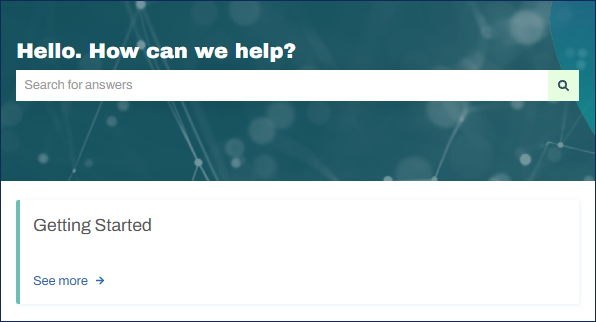
- To sign in, click the Sign In option in the upper right of the screen. A sign-in prompt appears where you can either provide your email address and password or register for an account. Enter your credentials to continue.
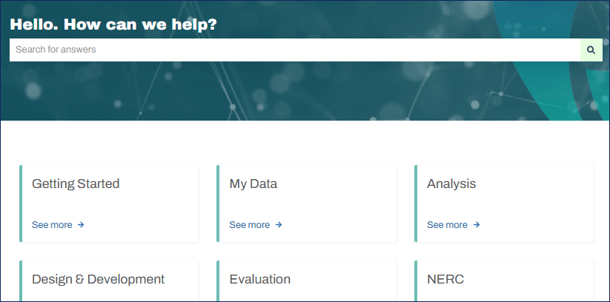
- Once you have signed in, the full Knowledge Base becomes available. The layout is similar to the previous QTD 2.0 Help Center. To access topics, click on its main category tile on the dashboard screen or enter text in the Search field.
Questions
If you have questions about your current support tickets or ticket history, or if you have questions about resources available in the Qlarity Knowledge Base, please contact us at success@focuslearning.com.